


When you break it down, a full WordPress backup has two essential parts: a copy of all your website files (think themes, plugins, and all your uploaded images) and an export of your database (where your posts, pages, and settings live). You can get this done in a few different ways, from relying on your host's automated backups and using dedicated plugins like UpdraftPlus, to getting your hands dirty with a manual backup using tools like cPanel and phpMyAdmin for ultimate control.
Why a Solid WordPress Backup Is Your Ultimate Safety Net
It’s tempting to push backing up your website to the bottom of the to-do list. We’ve all been there. But honestly, a reliable backup strategy is the single most important safety measure you can have for your online presence. It's your insurance policy against a surprisingly long list of things that can go wrong, often completely out of the blue.
Think about it. You've just spent weeks polishing a brand-new landing page, and then a server glitch wipes it out. Or that feeling of dread when a routine plugin update greets you with the infamous "white screen of death." These aren't just hypotheticals—they happen all the time. Without a recent backup, you're looking at a painful, time-consuming, and often incomplete rebuild from nothing.
The Real Costs of Data Loss
The fallout from losing your site data goes way beyond a technical headache. For any business, downtime means real, tangible losses.
- Lost Revenue: Every single minute your e-commerce shop is offline, you're losing money.
- Damaged Reputation: A broken website looks unprofessional and chips away at the trust you've built with your customers.
- SEO Penalties: If Google keeps finding your site unavailable, your hard-earned rankings will start to drop.
- Wasted Time: The hours you spend scrambling to fix a broken site are hours you're not spending growing your business.
This guide is all about moving past the why and getting straight to the how. We’ll walk through every reliable method for backing up your WordPress site, so you can build a defence that’s perfectly suited to you.
The Alarming State of UK WordPress Backups
The need for this is more urgent than many people realise. Recent data from the UK paints a pretty worrying picture, exposing a massive vulnerability among site owners. The backup crisis for UK WordPress sites is serious, with over 75% of users not backing up their websites at all.
Even among those who do, nearly half (47%) only do it once every few months. This is especially risky when you consider that the UK saw the highest rate of cybercrime in the world in 2022, jumping by a staggering 40% from the previous year. If you're curious, you can dig into more of these WordPress statistics to see the full picture.
A backup isn't just a file; it's a rewind button for your business. It turns a potential catastrophe into a minor inconvenience, letting you restore your digital storefront or portfolio in minutes instead of days.
From the easy, set-and-forget approach you get with managed hosting to the fine-tuned control of doing it yourself, you’ll come away with a clear, actionable plan. Whether you're running a personal blog or a busy WooCommerce store, the goal is the same: giving you the peace of mind that comes from knowing all your hard work is safe and sound.
The Hands-Off Approach: Relying on Your Managed Host
Let’s be honest, for many site owners, the thought of fiddling with backup plugins or downloading database files is a nightmare. If you’d rather focus on your business than on server administration, then backups managed by your hosting provider are the way to go. It’s the ultimate ‘set it and forget it’ approach, shifting the heavy lifting from your shoulders to the experts.
Think of your hosting provider as your site’s dedicated security detail. A core part of their service is taking frequent, automatic snapshots of everything—your files, your database, the works. Crucially, these aren't just tucked away in a folder on your server. They're stored on completely separate, secure, off-site infrastructure. This is non-negotiable; if your main server ever has a catastrophic failure, your backups are safe and sound somewhere else.
How Managed Backups Play Out in the Real World
Picture this: It's the night before a huge sale. You’re making one last-minute change to a product page and… poof. You accidentally delete the entire thing. The panic is real. If you were relying on a manual backup, you’d be frantically digging through files, hoping you have a recent version, and then navigating the stressful restoration process yourself.
With a quality managed host, the fix is far less dramatic. You simply log into your hosting dashboard, find the backup tool, and hit a one-click restore button. Or, even easier, you fire off a quick message to their support team.
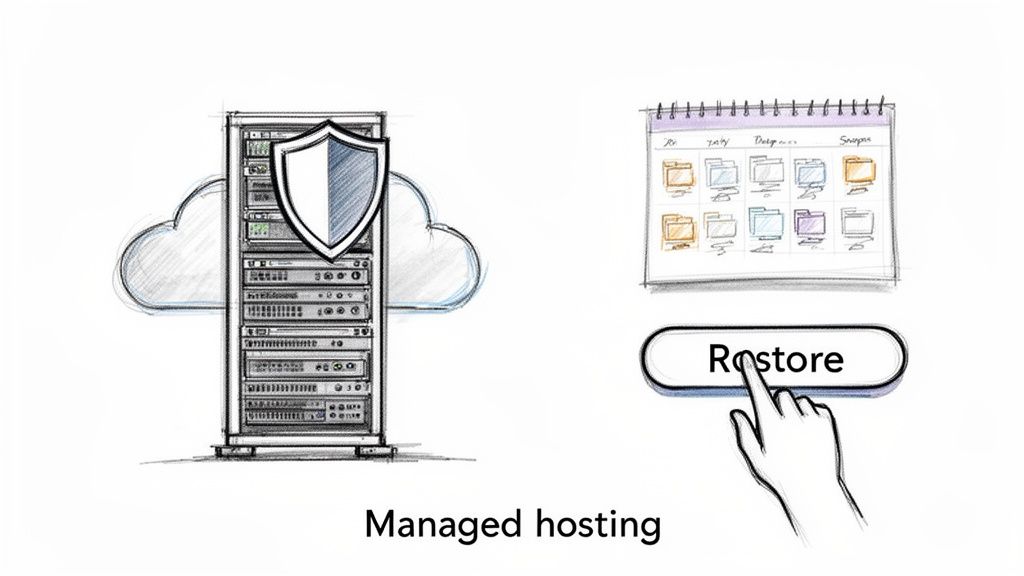
This kind of interface makes it incredibly simple to just pick a recent backup point and roll your site back in minutes.
The support team can pinpoint the last clean snapshot of your site—probably from just a few hours ago—and get it restored for you. What felt like a launch-killing disaster becomes a minor blip, sorted in under an hour. That peace of mind is precisely what you're paying for. For businesses here in the UK, looking into managed WordPress hosting is a brilliant way to get this level of security and hands-on support.
What to Look for in Host-Managed Backups
Not all hosting backups are built the same. When you're shopping around, you need to look for a few key features to make sure you're properly covered.
- Daily Automated Backups: Your site needs to be backed up at least once every 24 hours, automatically. No exceptions.
- True Off-Site Storage: Ask them where the backups are stored. If it's not on a different server network, it’s not a true disaster recovery solution.
- Easy One-Click Restores: You should have the power to restore your site yourself from a simple control panel. You don’t want to be forced to wait for support for every little thing.
- On-Demand Backups: This is a big one. You need the ability to create a fresh backup right before you make major changes, like a plugin update or theme switch.
When you let your host handle backups, you're not just buying a feature; you're investing in business continuity. It frees you up to focus on what you do best—growing your business—knowing there's always a safety net managed by people who live and breathe this stuff.
Taking Control with Automated Backup Plugins
While your host’s backups are a brilliant safety net, sometimes you just need more direct control. This is where a dedicated backup plugin really shines. It puts you firmly in the driver's seat, letting you fine-tune schedules, choose exactly where your backups are stored, and decide precisely what gets saved and when.
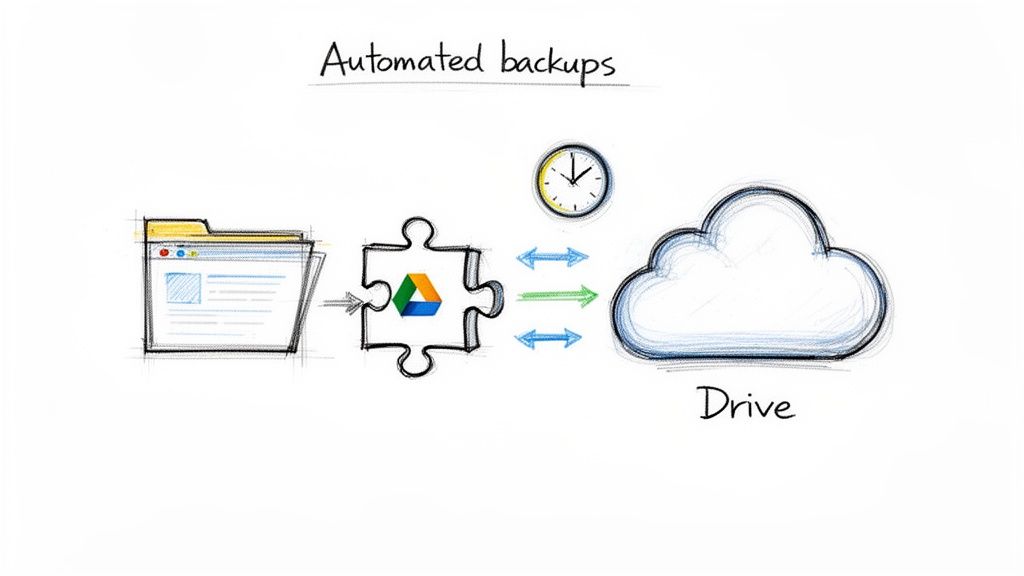
For many UK businesses, this isn't just a 'nice-to-have'; it's an essential part of a solid digital strategy. There’s a clear trend towards using specialised plugins to complement, or even take over from, standard hosting backups. Just look at the popularity of a tool like UpdraftPlus, which boasts over 3 million active installations. It shows how many of us are using a hybrid approach: rely on the host for a baseline, but use a plugin for granular, mission-critical control. You can see how this thinking is evolving in various UK WordPress maintenance trends.
Choosing the Right Tool for the Job
The WordPress plugin library is brimming with backup options, but a few names consistently rise to the top for their reliability. Tools like UpdraftPlus and Duplicator are favourites for good reason—they offer a seriously robust set of features, even in their free versions, making them perfect for everyone from solo bloggers to established e-commerce sites.
To help you navigate the options, here's a quick look at some of the most popular backup plugins available.
Comparing Popular WordPress Backup Plugins
Choosing a plugin can feel a bit overwhelming, so I've put together a simple comparison of the top three contenders. Each has its strengths, so the 'best' one really depends on your technical comfort level and what you need it to do.
| Feature | UpdraftPlus | Duplicator Pro | Jetpack Backup |
|---|---|---|---|
| Scheduling | Full control (hourly, daily, weekly) | Yes, fully customisable | Real-time and daily |
| Cloud Storage | Extensive (Google Drive, Dropbox, S3) | Yes (Google Drive, Dropbox, FTP, etc.) | Jetpack Cloud (proprietary) |
| Ease of Use | Very user-friendly, clear interface | More technical, focused on migration | Extremely simple, integrated |
| Best For | All-around reliability and flexibility | Site migrations and developer workflows | Set-and-forget simplicity |
Ultimately, your choice boils down to your specific needs. If you're after a powerful, straightforward tool for scheduling backups to your own cloud account, UpdraftPlus is an excellent place to start. If you find yourself frequently cloning or moving sites, the migration-focused toolkit in Duplicator is invaluable.
Crafting a Smart Backup Schedule
Simply installing a plugin and hitting 'go' isn't enough. The real magic happens when you configure a smart schedule that actually matches your website's activity. A one-size-fits-all approach just doesn't cut it. The key question to ask yourself is, "How much data from the last few hours or days can I genuinely afford to lose?"
Imagine you run a busy WooCommerce store. You've got new orders, customer registrations, and stock updates happening all day long. Losing even a few hours of that information could be a nightmare. In this case, a simple daily backup just won't be enough.
A much smarter strategy is to set up a split schedule:
- Database Backups: Set your plugin to back up the WordPress database every hour. This file is tiny but contains all your precious order and customer information. These backups are quick and won't strain your server.
- Full-Site Backups: Schedule a complete backup of all your files—themes, plugins, and uploads—to run just once a week. Pick a quiet time, like early on a Sunday morning, to minimise any impact on performance.
This tiered approach gives you the best of both worlds. You get constant protection for your most dynamic data without hammering your server with massive, full-site backups all the time.
Pro Tip: Always send your backups to an off-site cloud storage location like Google Drive, Dropbox, or Amazon S3. Storing backups on the same server as your website is like keeping your spare house key under the doormat—if something goes wrong with the server, you lose both your site and your only way to recover it.
Defining What to Include in Your Backup
A good plugin lets you get specific about what you're backing up. While "full backup" might seem like the safest option, you can be more efficient.
- WordPress Core Files: Many people choose to exclude these. You can always download a fresh copy from WordPress.org, so backing them up repeatedly just adds unnecessary bulk to your backup files.
- Plugins and Themes: Absolutely essential to include. All your customisations and settings live here.
- Uploads Folder: This is non-negotiable. It contains all your images, PDFs, and other media you've uploaded over the years. This content would be incredibly difficult, if not impossible, to replace.
- The Database: This is the heart and soul of your website. It holds all your posts, pages, user data, and e-commerce transactions. It must be included in every single backup.
By fine-tuning these settings, you can create an automated backup process that's not just reliable but also efficient and perfectly suited to your site's rhythm. This level of customisation is precisely why plugins remain a cornerstone of any serious strategy for how to back up a WordPress site.
The DIY Method: Mastering Manual Backups
While automated tools are a lifesaver, knowing how to back up your WordPress site by hand is a skill every site owner should have in their back pocket. Think of it like knowing how to change a tyre; you might not do it every day, but you'll be incredibly glad you can when you need to.
Performing a manual backup gives you absolute control. It's perfect for those critical moments right before you make a big change, like swapping themes or installing a complex plugin. You get a perfect, point-in-time snapshot that you know is solid.
The whole process boils down to two main jobs: grabbing a copy of your website's files and exporting your site's database. Miss one, and your backup is useless. Let's walk through it.
Securing Your Website Files
First up, the files. These are the scaffolding of your digital presence—your theme files, every plugin, and of course, your entire media library of images and documents. The most straightforward way to get these is through your hosting control panel, which for most UK hosts is cPanel.
Once you're logged into cPanel, look for an application called File Manager. This tool is a direct window into your server's file structure. Your WordPress installation almost always lives inside a folder named public_html.
Getting your files is simple:
- Navigate into the
public_htmldirectory. - Select all the files and folders inside.
- Use the "Compress" or "Zip" function to bundle everything into a single
.ziparchive. - Once the compression is done, just download that single file to your computer.
That's it. You've just created a complete snapshot of your site's structure. But remember, this is only half the job. Without the database, these files are like an empty library building with no books inside.
Exporting Your WordPress Database
The database is the true heart of your WordPress site. It stores every post, page, comment, user profile, and setting. All that content you’ve worked so hard on lives here, making this step absolutely essential. The standard tool for this job is phpMyAdmin, which you can also find in your cPanel.
phpMyAdmin can look a bit intimidating at first, but you only need a couple of clicks. After opening it, you'll see a list of your databases on the left-hand side.
Crucial Tip: If you have multiple databases and aren't sure which one your WordPress site uses, you can find the name in your
wp-config.phpfile. It's in yourpublic_htmlfolder, and the name is listed right next toDB_NAME.
Once you've selected the correct database, the rest is easy:
- Click on the "Export" tab at the top of the page.
- Choose the "Quick" export method.
- Make sure the format is set to "SQL".
- Click "Go," and your browser will download a
.sqlfile.
This little file is a text-based blueprint of your entire site's content and settings. With the .zip of your files and the .sql of your database saved securely on your computer, you now have a complete, independent, manual backup.
Why Manual Backups Still Matter
Knowing this process is a powerful layer of defence. WordPress vulnerabilities, particularly in the UK, have seen a dramatic rise. Research shows that plugins are the single biggest entry point for attackers, accounting for a staggering 50% of security breaches, with themes not far behind at 25%.
For UK businesses, this highlights that a backup isn't just for recovering from accidental deletions; it's a critical last stand against a potential compromise. Having a clean, manual backup allows for rapid recovery when you need it most. You can explore more about these WordPress security findings to better understand the risks.
Think of this manual method as your emergency toolkit. It’s the definitive way to create a snapshot before you make a significant change, giving you a reliable restoration point that is completely independent of any plugin or hosting service. While it’s not the most efficient method for daily protection, mastering it ensures you’re never truly locked out of your own website.
Building a Bulletproof WordPress Backup Strategy
Having the right tools is only half the battle. A truly effective WordPress backup plan is built on a solid strategy—a system that works tirelessly in the background, giving you complete confidence that your digital assets are safe. Without a clear plan, even the best plugins or hosting features can leave you vulnerable.
It all boils down to two core ideas: frequency and redundancy. You need to back up your site often enough to avoid painful data loss and store those backups in a way that protects them from any single point of failure.
How Often Should You Really Back Up?
The first thing to figure out is your ideal backup frequency. Just ask yourself one simple question: “How much work am I willing to lose?” Your answer directly dictates how often you should be saving a copy of your website.
There’s no one-size-fits-all schedule here; it's completely tied to how often your site’s content and data change.
- For a busy WooCommerce store: If you’re processing orders all day, a daily backup is the absolute bare minimum. Honestly, losing an entire day of transactions could be catastrophic. For high-volume shops, I always recommend real-time or hourly database backups to protect that precious order data.
- For a content-focused blog: If you publish a new article once or twice a week and get a handful of comments, a full weekly backup is probably fine. It captures all the significant changes without putting unnecessary strain on your server.
This flowchart gives you a quick visual guide to help you decide which path makes the most sense based on your own technical comfort level.
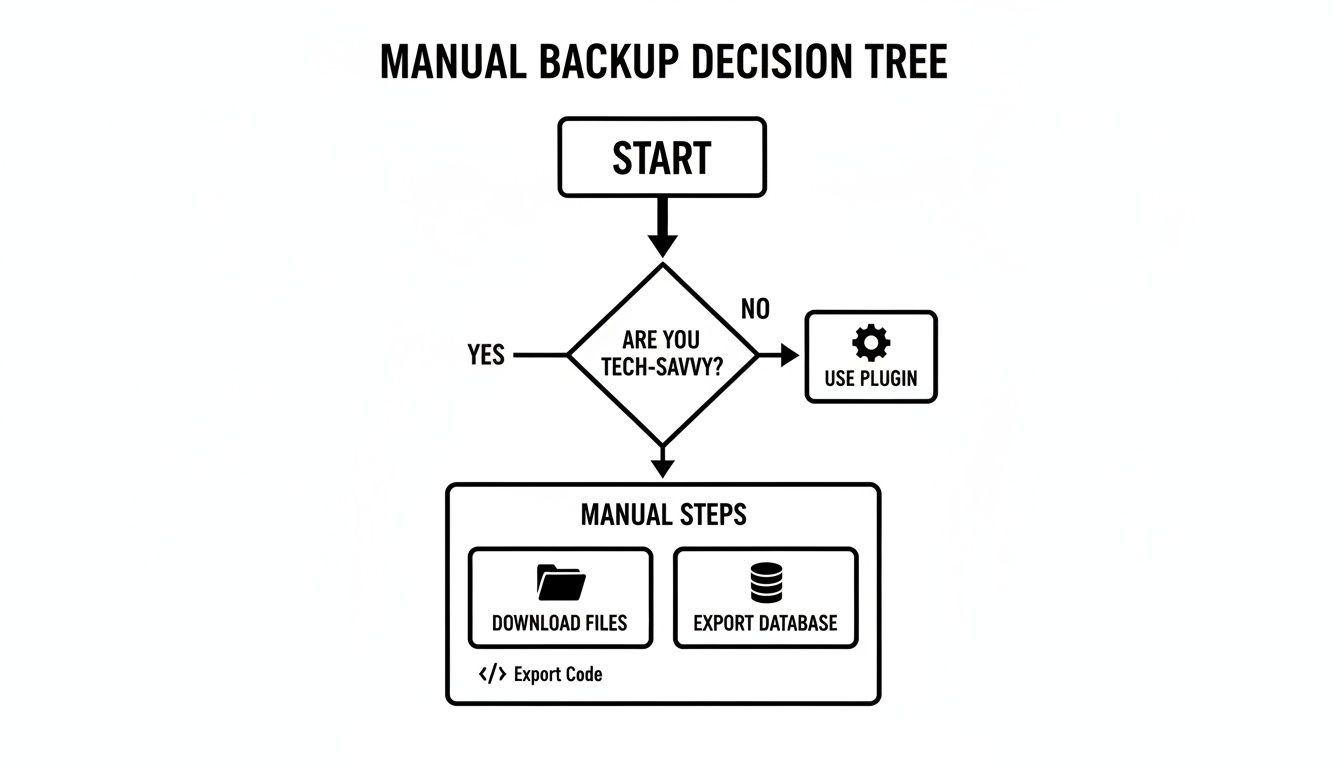
As you can see, it simplifies the choice. If you're less technical, a good plugin is your best friend. If you're comfortable with server tools, you can absolutely go the manual route.
The 3-2-1 Rule: The Gold Standard of Data Safety
Once you’ve nailed down a schedule, the next critical piece is where you store those backups. Let me be blunt: keeping your backups on the same server as your live website is a huge risk. If that server fails or gets hacked, you lose both your site and your only way to recover it.
This is where the industry-standard 3-2-1 rule comes into play. It’s a simple but incredibly powerful framework for data protection that I’ve relied on for years.
The 3-2-1 Backup Strategy:
Keep at least three copies of your data.
Store the copies on two different types of media.
Keep one of these copies completely off-site.
So, what does this look like for your WordPress site in the real world?
- Your live website itself (that’s copy number one).
- An automated backup stored with your managed hosting provider (that’s copy two, on different hardware).
- A third copy automatically sent to an independent, off-site cloud storage service like Google Drive, Dropbox, or Amazon S3 (this is your crucial off-site copy).
This layered defence ensures that no single disaster, whether it’s a server fire or a ransomware attack, can wipe out all your hard work. Following this rule transforms your backup process from a simple chore into a robust disaster recovery plan.
The Most Overlooked Step: Actually Testing Your Backups
Here’s a hard truth I’ve learned from experience: an untested backup isn't a backup. It’s a gamble. You absolutely have to verify that your backup files can be successfully restored and will bring your site back online exactly as you expect.
The consequences of skipping this are devastating. Imagine discovering your backups are corrupted after your main site has already crashed. At that point, it's far too late.
Best practice is to test your backups regularly—at least once a quarter, or after any major change to your site. The safest way to do this is on a staging site, which is just a non-public clone of your live website. Most good managed hosts offer one-click staging environments for this very purpose.
Your testing process is straightforward:
- Take a fresh, full backup of your live site.
- Restore that backup file to your staging environment.
- Click through everything on the restored staging site. Do all the pages load correctly? Do your forms submit? Can you log into the admin dashboard?
This simple drill is the only way to know for sure that your safety net will actually catch you when you need it. Consistent testing, a smart schedule, and the 3-2-1 rule form the bedrock of a bulletproof backup strategy and are a core part of any healthy WordPress website maintenance routine.
Common Questions About WordPress Backups
When you're first figuring out how to back up a WordPress site, the same few questions tend to pop up. Getting solid answers to these is the key to building a backup strategy that actually lets you sleep at night. Let's dig into the questions we hear all the time.
How Often Should I Really Back Up My WordPress Site?
Honestly, there's no magic number. The right backup frequency comes down to one simple question: "How much work am I willing to lose and do all over again?" Your answer points you directly to your ideal schedule.
If you run a busy WooCommerce store with orders coming in all day, you can't afford to lose a single transaction. That means you need daily backups at a minimum, and many high-volume shops even back up their database every hour. On the other hand, if you have a personal blog that you only post to once a week, a weekly backup is probably perfectly fine.
Where Is the Safest Place to Store My Backups?
This is where so many people get it wrong, and it’s a critical mistake. Never store your backups on the same server as your website. It's like keeping the only spare key to your house inside the house itself. If that server fails or gets hacked, you lose your live site and your only way to get it back.
The gold standard in the industry is the 3-2-1 rule:
- Keep at least three copies of your data.
- Store these copies on two different types of media.
- Make sure at least one of those copies is kept completely off-site.
So what does this look like in the real world? You’d have your live website (that’s copy one), a snapshot from your host stored on their separate backup server (copy two), and a third copy you send to a cloud service like Google Drive or Dropbox. That third, off-site copy is your ultimate insurance policy.
Your backup is only as good as its location. Storing it away from your primary server turns it from a simple file into a true disaster recovery tool, ready to be deployed no matter what happens to your live site.
What Is the Difference Between a Full and a Database Backup?
Knowing the difference here can make your backup process much more efficient. A full backup is exactly what it sounds like—a complete copy of everything. We're talking WordPress core files, your themes and plugins, all your uploaded images and media, and your database. It's the whole shebang.
A database-only backup, however, just copies the database itself. This is where the lifeblood of your site is stored: all your posts, pages, user accounts, comments, and site settings. Because these backups are much smaller and faster to run, they’re perfect for capturing frequent changes to your site's content without putting a heavy load on your server.
Can I Just Rely on My Hosting Provider's Backups?
For many site owners, a high-quality managed hosting backup is an excellent safety net and often all you'll need. It's automated, reliable, and you don't have to lift a finger, which is a massive plus.
However, for a business-critical website or an e-commerce store, I always recommend adding a second, independent backup through a plugin. This creates powerful redundancy.
Think of it like the spare tyre in your car. You trust the four on your car, but you’ll be incredibly glad you have that spare if you ever get a flat. Combining your host's service with your own plugin gives you two separate, robust ways to recover. If you need a hand setting up a layered strategy like this, exploring professional WordPress website support services can be a huge help.
At Vivihosting, we build this peace of mind directly into our managed hosting. With automated daily backups, one-click restores, and expert support, we ensure your site is always protected, so you can focus on growing your business. Learn more about our secure hosting plans today.